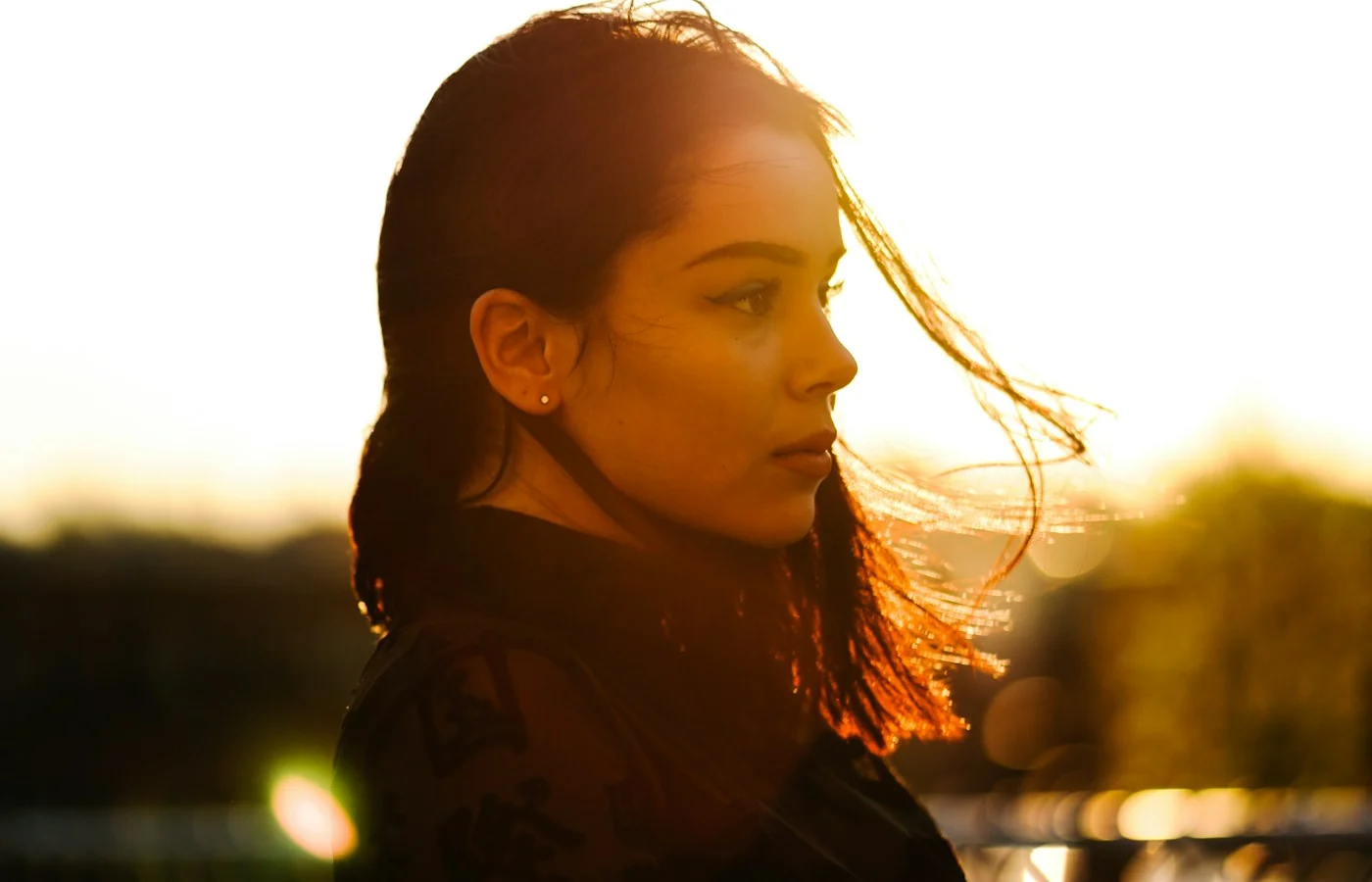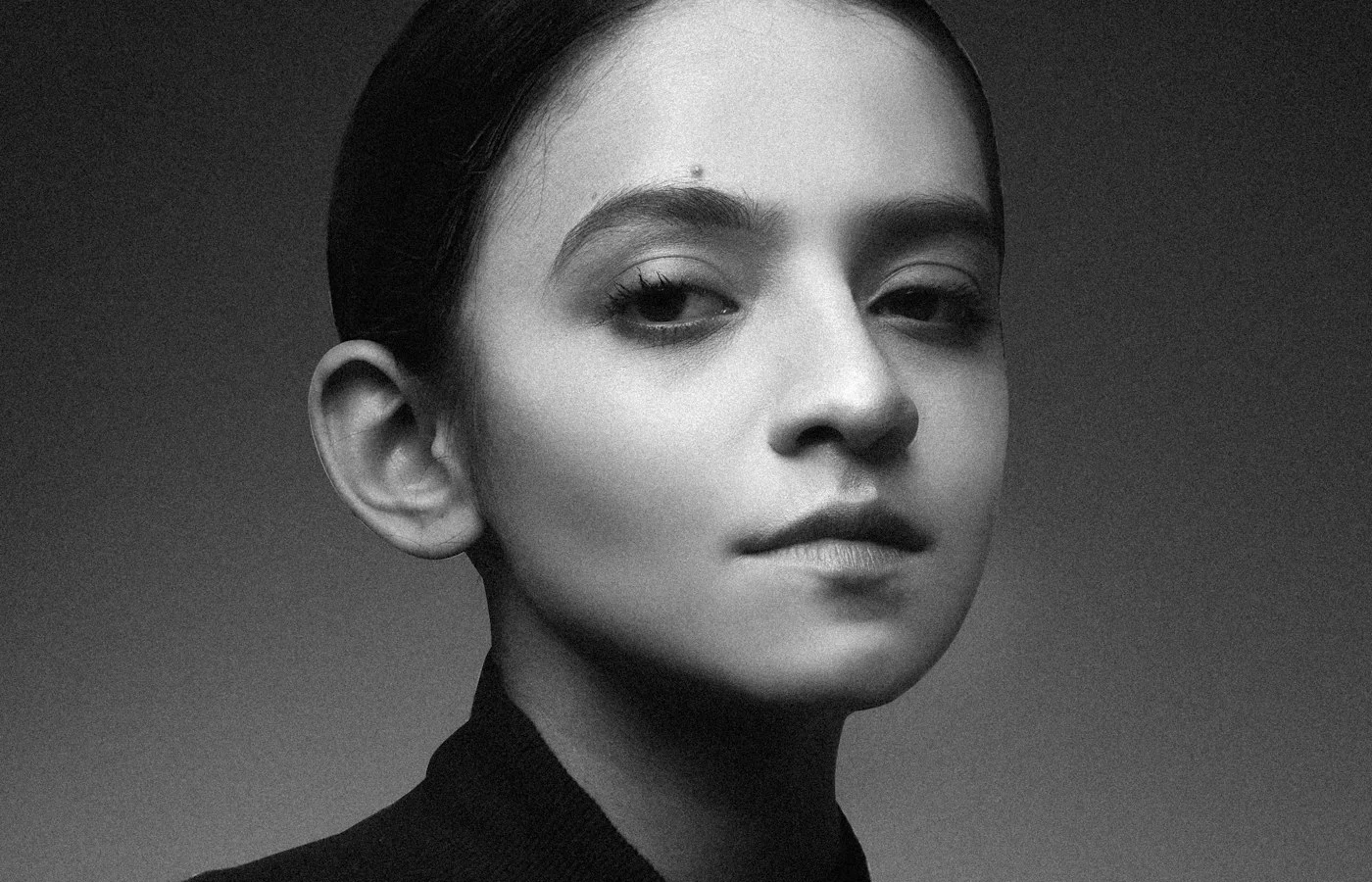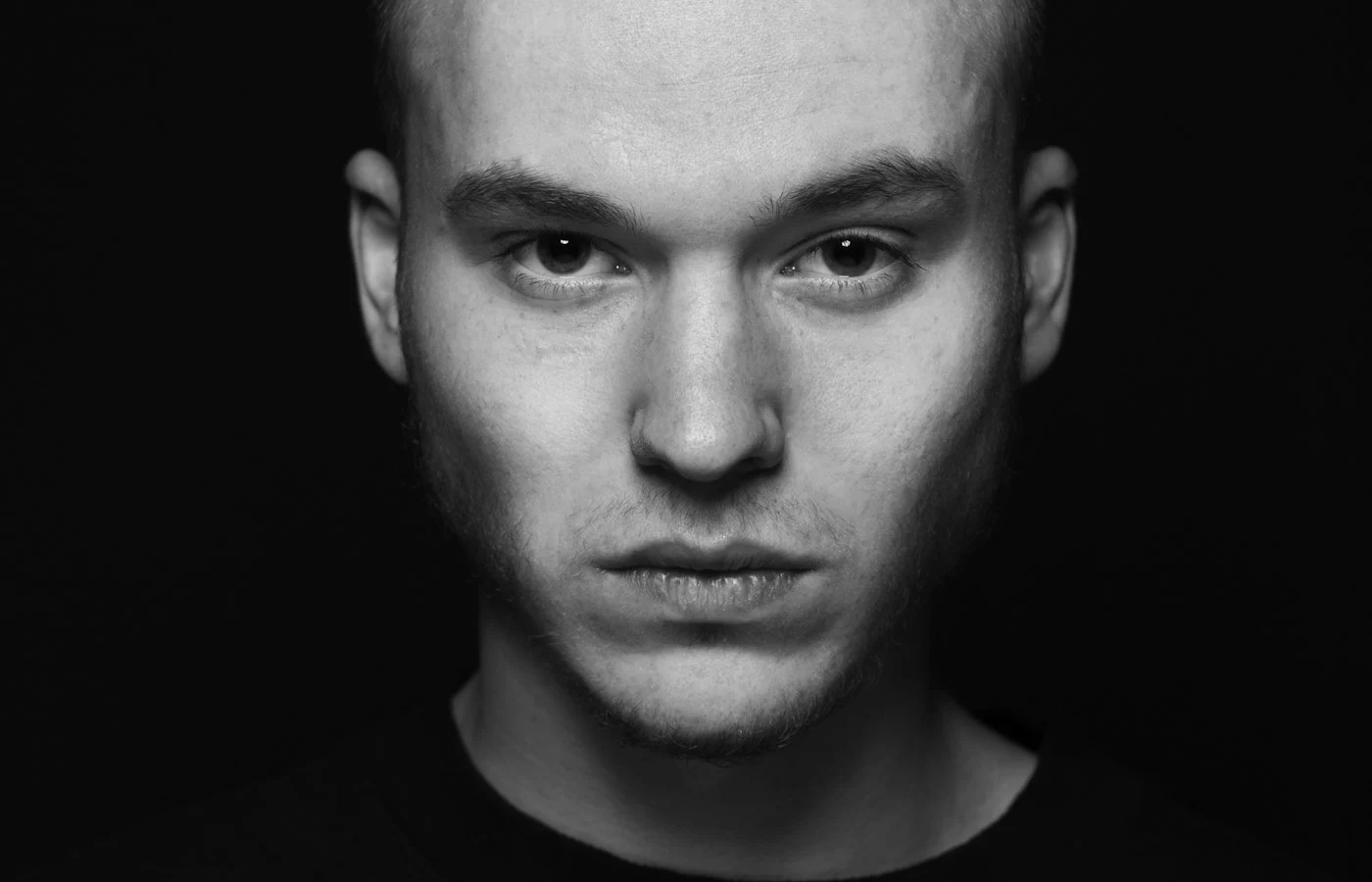
A YouTube thumbnail is seen at a small size, often next to many others. A portrait that works there is simple: a clear face, strong light, a plain background, and room for a few words. This guide shows how to make a thumbnail portrait with an AI image tool, from the source photo to the final crop.
What a thumbnail portrait needs
- A clear, large face: faces read quickly at small sizes.
- A readable expression: surprise, focus, or a smile tells viewers what to expect.
- A simple background: detail turns into noise when the image is small.
- Contrast: the subject should stand out from the background in brightness or color.
- Empty space: room on one side for a title or a few words.
Step 1: Know the format
Thumbnails are 16:9 images. A commonly recommended size is 1280 × 720 pixels. YouTube sets its own minimum width and file-size limit, and these can change, so check the current guidance on YouTube before you export.
Step 2: Start with the right source photo
- Use a sharp, evenly lit photo with an expressive face.
- Take it with the camera at eye level, a little closer than a normal portrait.
- Choose an expression that fits the video, not a neutral one.
Step 3: Write a prompt for a 16:9 frame
Place the subject on one side and ask for empty space on the other. This keeps room for text.
Using my uploaded photo, create a thumbnail portrait. Keep my face, hairstyle, and features exactly the same, with a clear expressive look. Subject on the left third of the frame, head and shoulders, filling most of the height. Solid dark blue background with a soft glow behind me, bright even front light with a thin rim light on the edges. Sharp focus on the eyes. Empty space on the right. 16:9 widescreen.
Lighting and color choices
| Goal | Wording to try |
|---|---|
| Make the face pop | “bright even front light, thin rim light, dark background” |
| Warm, friendly mood | “warm soft light, orange and yellow background” |
| Serious or technical mood | “cool blue tones, high contrast, dark gray background” |
| Strong separation | “background color contrasts with my clothing” |
Add text outside the AI tool
Image tools often garble text. Ask for a clean space and add words yourself in an editor. Use a bold font, keep it to three to five words, and check how it looks at a small size.
Check the thumbnail at small size
- Shrink it to about 200 pixels wide. Can you still see the face and read the text?
- Place it next to a few other thumbnails. Does it stand out without looking harsh?
- View it on a phone, where many people will see it.
Common problems and fixes
| Problem | Fix |
|---|---|
| Face is too small | Ask for “face fills most of the height of the frame” |
| Background is busy | Ask for a solid color or soft gradient |
| Garbled text | Remove text from the prompt and add it afterward |
| Face looks different | Repeat the identity line and use a sharper photo |
Frequently asked questions
Should the thumbnail match the video content?
Yes. A thumbnail that promises something the video does not deliver frustrates viewers, and it can hurt how people see your channel.
Can I use a vertical photo?
You can upload one, then ask the tool for a 16:9 frame. Check the extra space it adds for odd details.
For the other common ratios, read aspect ratios for AI images. For lighting words, see AI portrait lighting terms.